- Help Center
- Family Accounts
How do I post a manual food service payment to a family account with the new user interface?
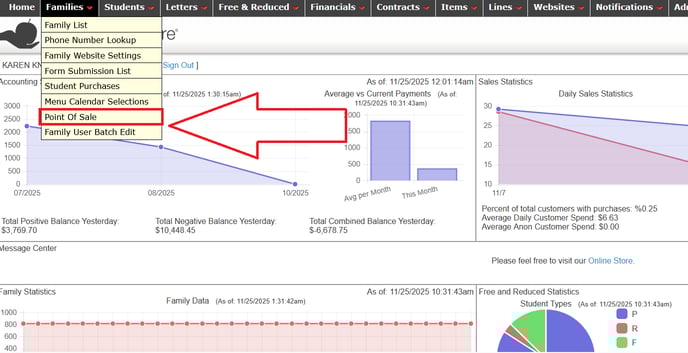
The way you post payments to family accounts is changing. This change will allow you to have a much more comprehensive set of reports. To make a payment, log in to the Admin Site and from the Families tab, select Point of Sale, as seen here:
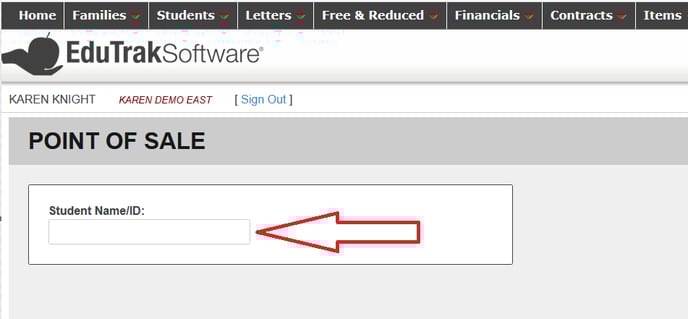
Next, search for one of the students in the family, as seen here. (Note, for food service payments, all students in the family eat out of the same shared family balance.)
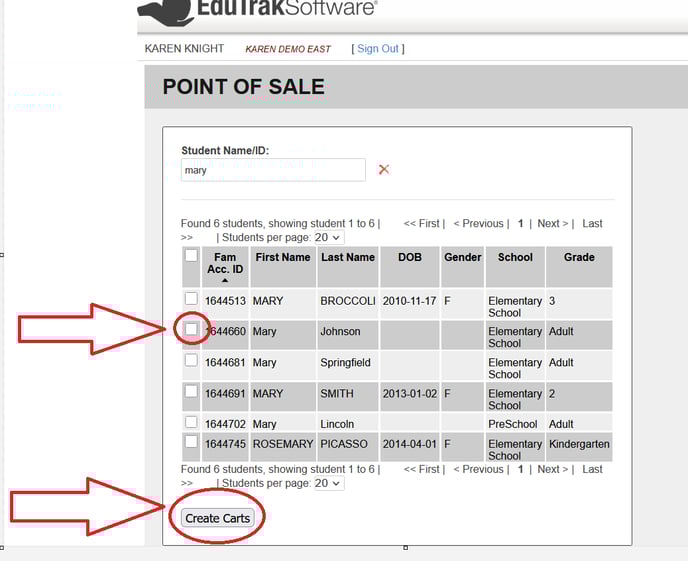
Next, check the box next to one of the students in the family, then click
“Create Carts”, as seen here:
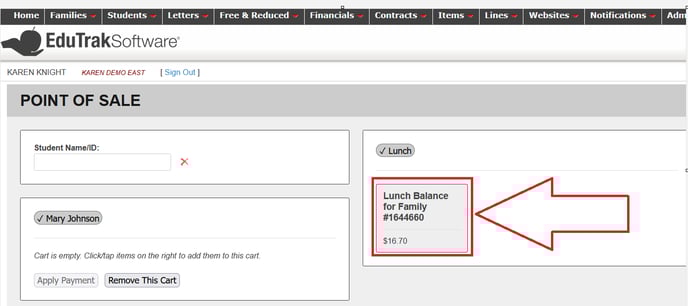
Next, click on the “Lunch Balance for Family” box, as seen here:
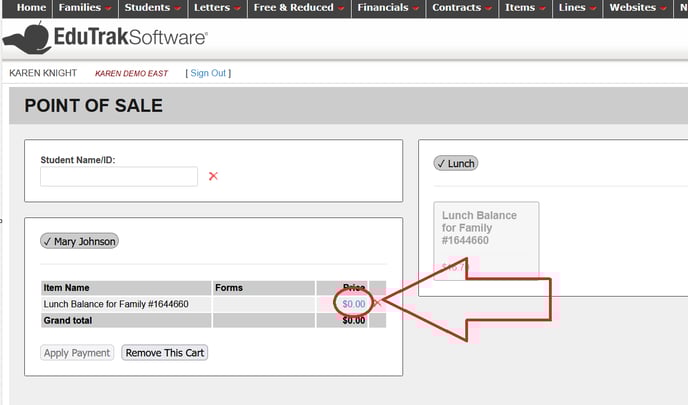
Next, enter the amount of the payment, as seen here:
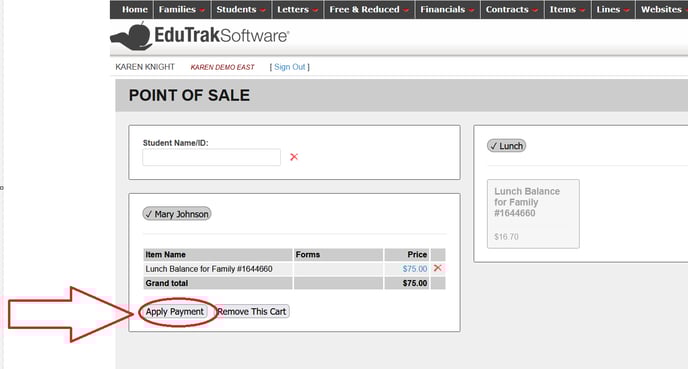
Next, click “Apply Payment”, as seen here:
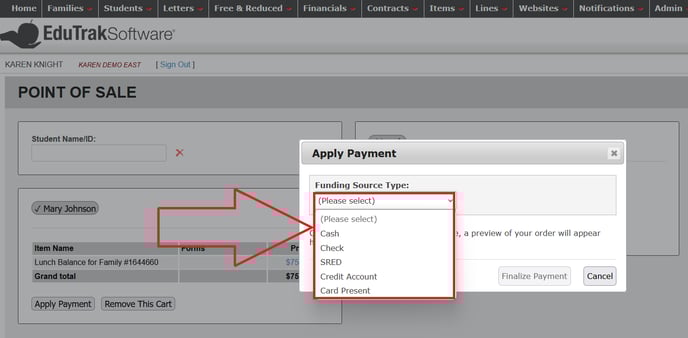
Next, select a Funding Source, as seen here: It is important to note you should NOT select “SRED” or “Card Present” unless you have a SRED (credit card swiper) in the school office.
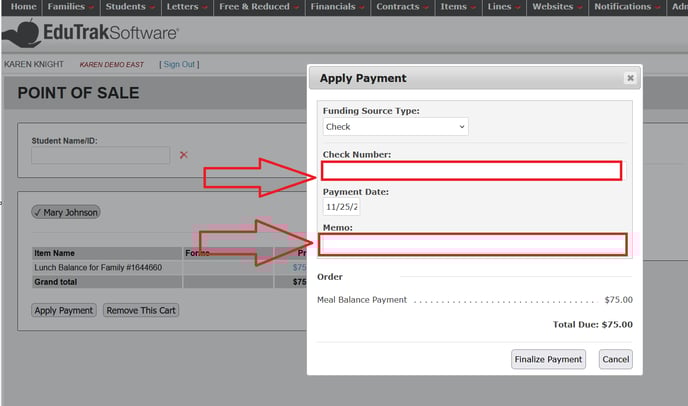
Next, enter a check number (if it is a check) and a memo (optional), as seen here:
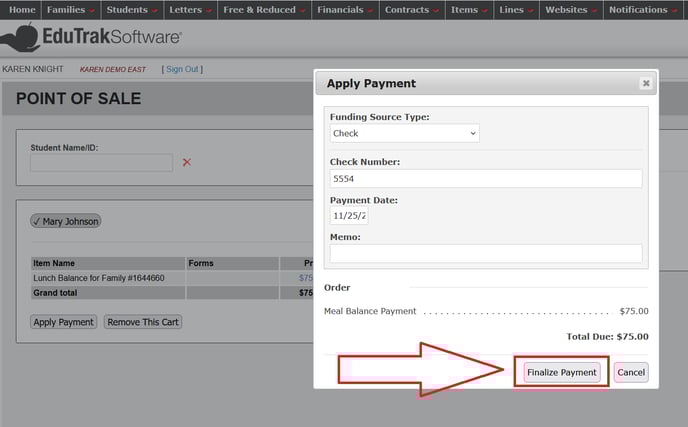
Next, click “Finalize Payment”, as seen here: