![New Project.png]](https://knowledgebase.edutrak.com/hs-fs/hubfs/New%20Project.png?height=40&name=New%20Project.png)
When creating a new menu item, you will be asked to assign it an Item Type. A basic explanation of each Item Type is listed below:
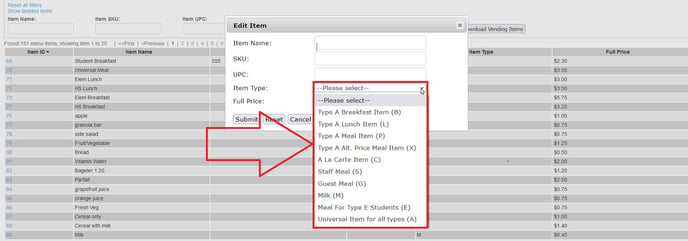
Type A Breakfast Item (B) - Use this item type for a reimbursable breakfast item in a P-Type school. This item can only be purchased by students.
Type A Lunch Item (L) - Use this for a reimbursable lunch item in a P-Type school. This item can only be purchased by students.
Type A Meal Item (P) - Use this item type for a reimbursable breakfast or lunch item in a P-Type school. This item can only be purchased by students.
Type A Alt. Price Meal Item (X) - Use this item type for a reimbursable breakfast or lunch item in an X-Type school. This item can only be purchased by students.
A La Carte Item (C) - Use this item type for an a la carte item. A la carte items can be purchased by anyone with a la carte permission.
Staff Meal (S) - Use this item type for a meal that can only be purchased by staff members
Guest Meal (G) - Use this item type to track meals sold to guests. This item can be charged to students or staff accounts.
Milk (M) - Use this item type for milk. This item type can also track reimbursable (free, reduced, paid) milk purchases.
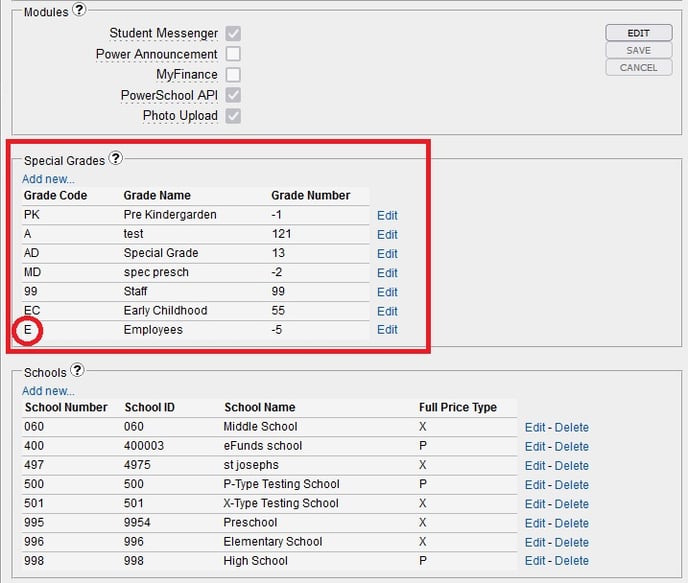
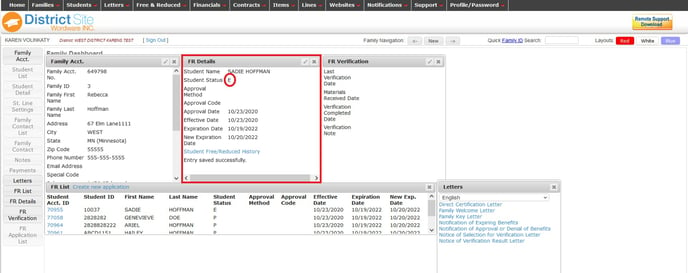
Meal For Type E Students (E) - Use this item type for a special pricing tier for staff/employees. This item can only be purchased by people with an E status in the FR Details of the Wordware District Site. There must also be a Special Grade created for E-type participants in the LCS1000>System tab>System Wide Settings>Special Grades.
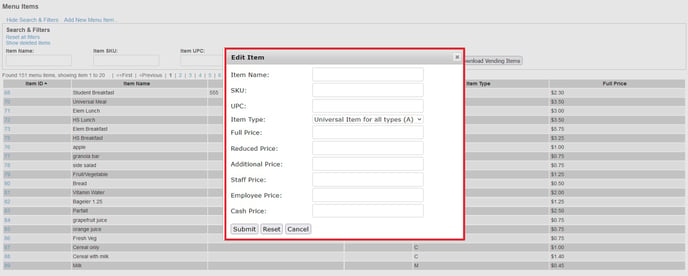
Universal Item for all types (A) - Use this this item type when you want to be able to charge a single item out to multiple types with different prices. See example:
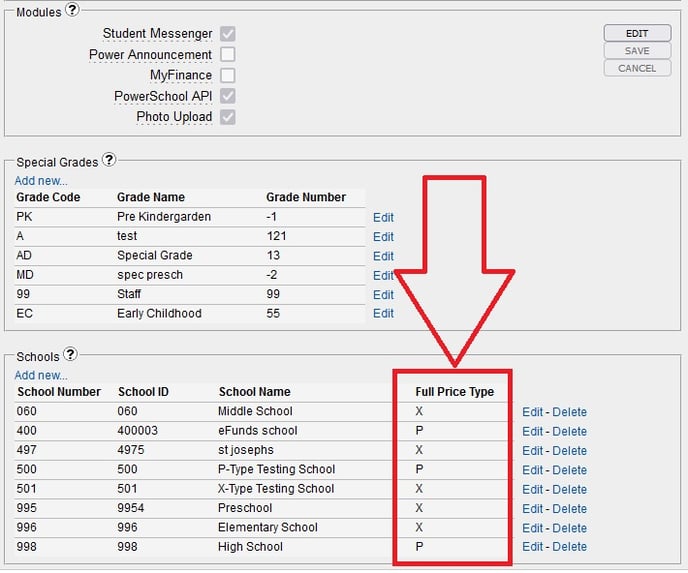
To find your school type(s) go to LCS1000>System tab>System Wide Settings
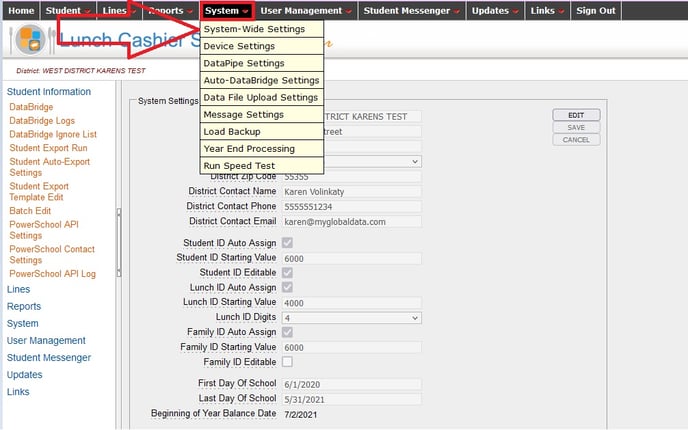
At the bottom of this page, you will find a list of your schools. See the Full Price Type column to determine the school type.