![New Project.png]](https://knowledgebase.edutrak.com/hs-fs/hubfs/New%20Project.png?height=40&name=New%20Project.png)
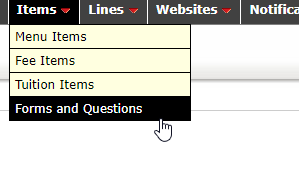
1. Sign into the District Site > Items > Forms and Questions
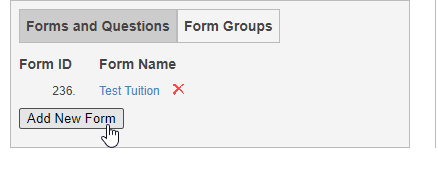
2. Click on Add New Form
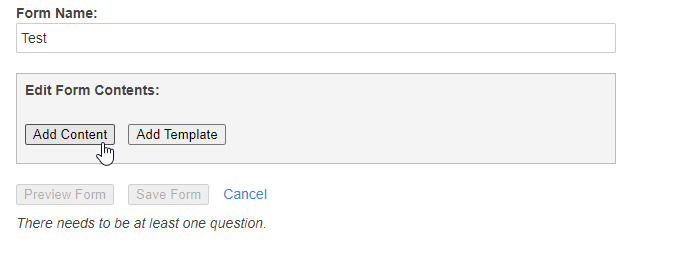
3. Name the Form and then Click on Add Content
4. Select what kind of content you want to add: There are a few options:
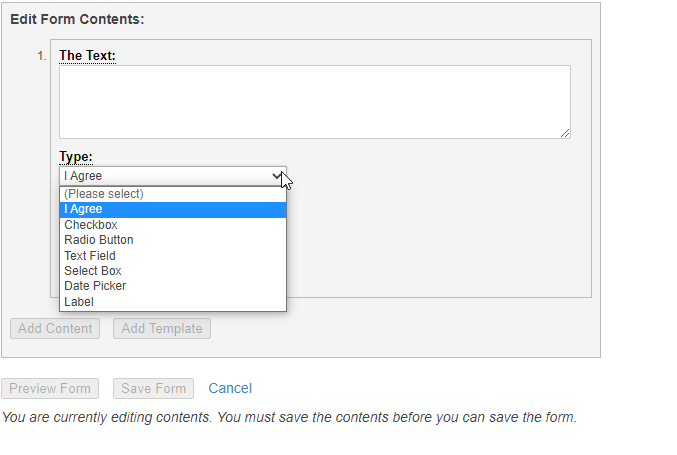
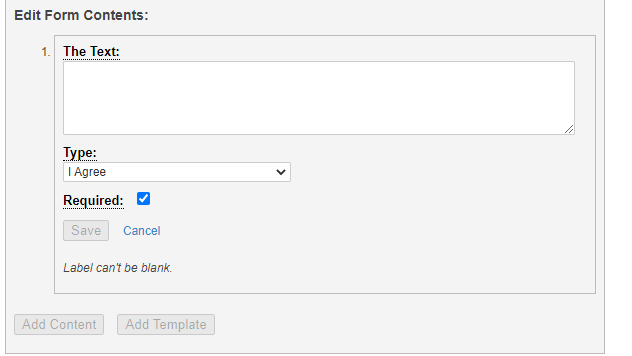
I Agree: This options allows you to put in disclaimer for a fee item/tuition item and they must agree to proceed: Fill out the text box and click Save
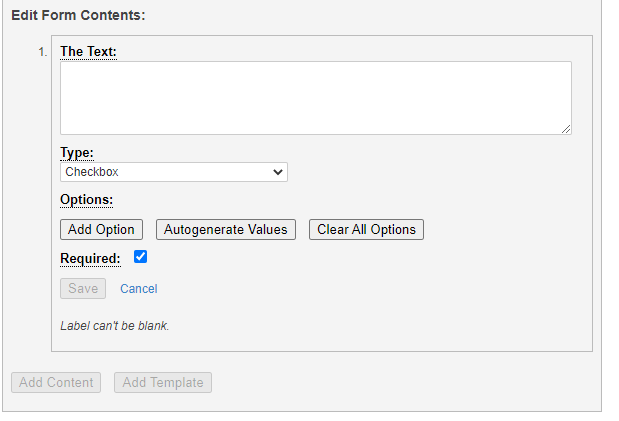
Checkbox: This option allows you to add in different options, for example such as t-shirt/jacket sizes or color and the price for each item. Simply, click on Add option input information in the display label and the amount in the value.

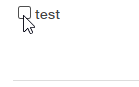
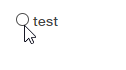
Radio Box: This is similar to the checkbox, feature and all. The only difference is the appearance. Square box vs, circle choices:
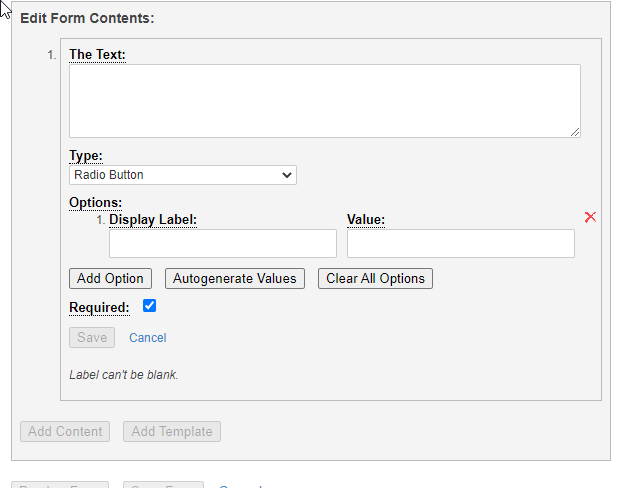
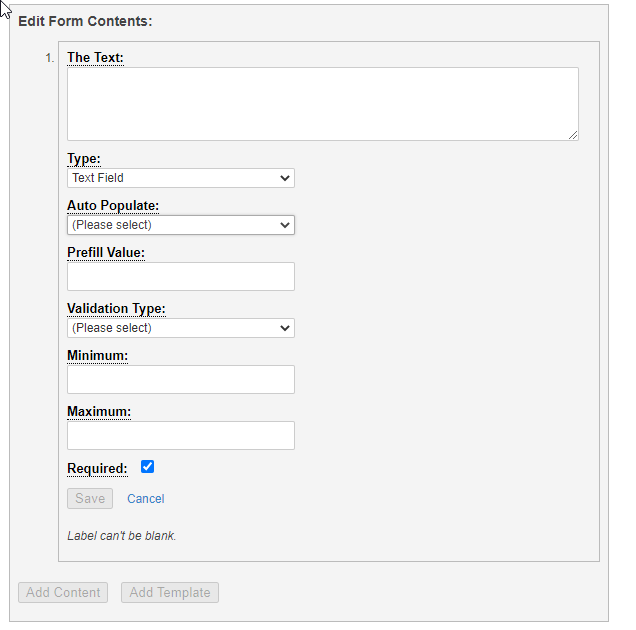
Text Field: This option allows you to set up required information such as Full name, address, student information, etc: Good for logging field trips, activities, etc. Can use the auto populate as well.
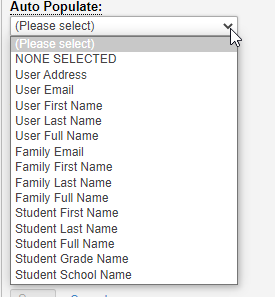
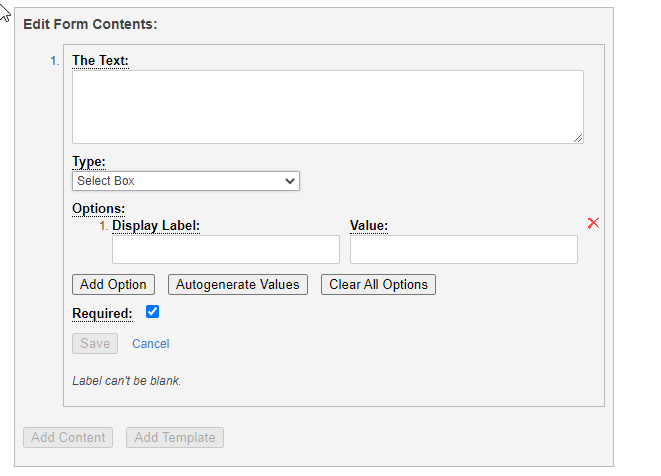
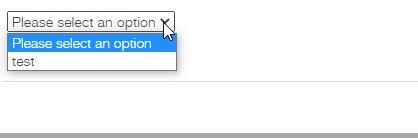
Select Box: This option is similar to the Radio and check box. Except, it's a drop down menu.
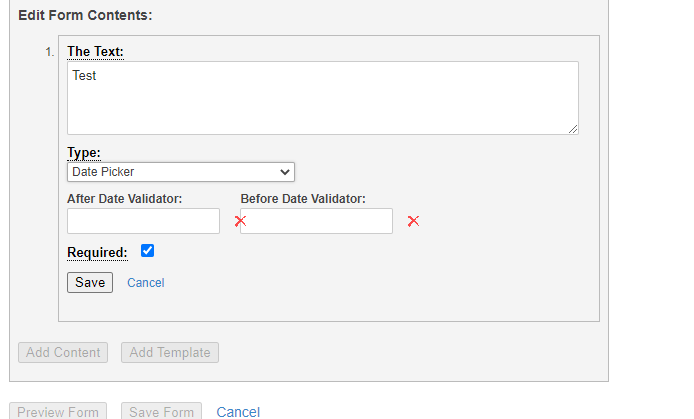
Date Picker: This option allows you to select date validation. The After and before.
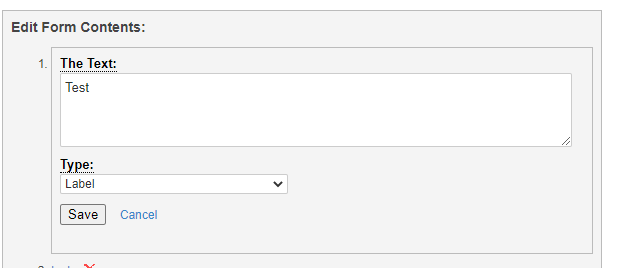
Label: This option gives you a label. You can input information here and it will show up on the item. Information such as important information etc.