![New Project.png]](https://knowledgebase.edutrak.com/hs-fs/hubfs/New%20Project.png?height=40&name=New%20Project.png)
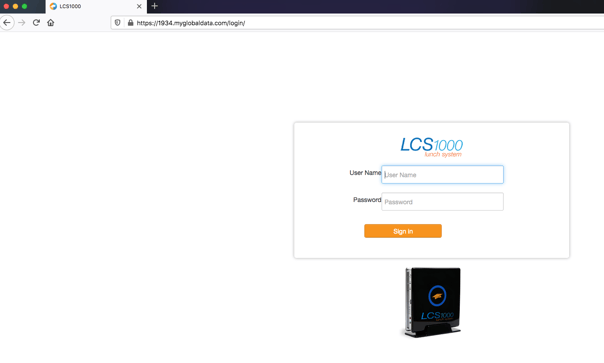
1. Login to your LCS1000
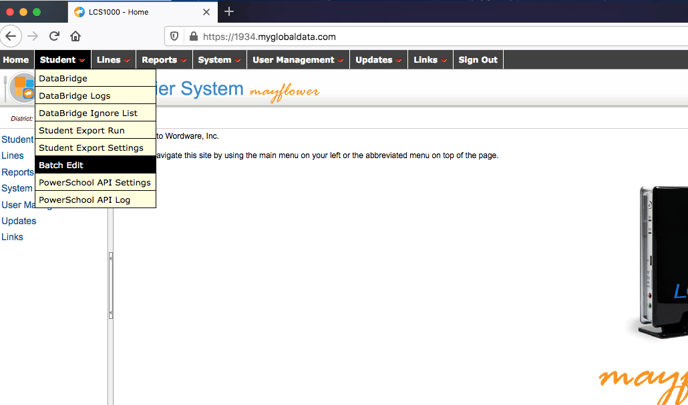
>Batch Edit>Student Batches>Select Grades or filter any group of student(s)
>Click Search
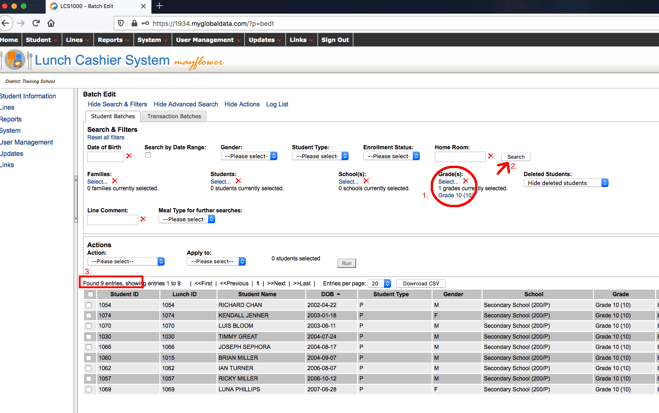
Once you have the group of student you want to set defaults for searched
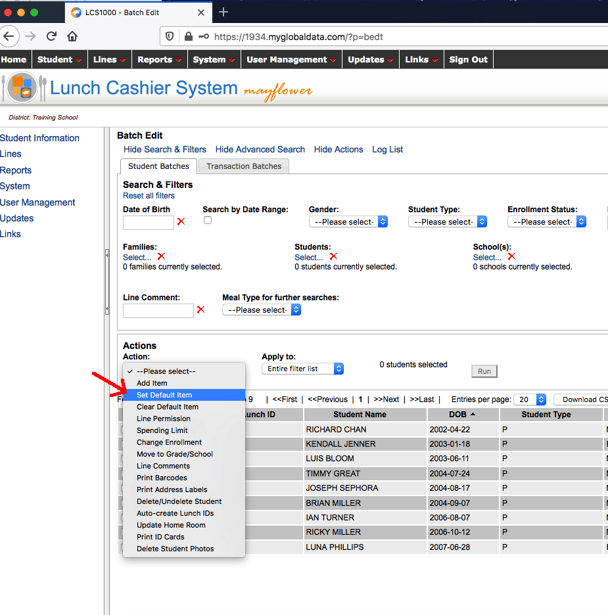
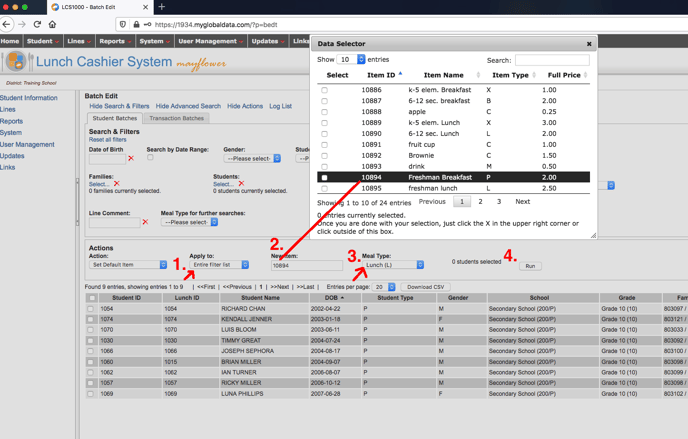
2. In Actions Menu, select (from dropdown menu) – Set Default Item
>Apply to: Entire Filter List
3. Click in New Item box, select desired default menu item
>Meal Type: Select Breakfast or Lunch
>Then click Run and confirm by clicking OK
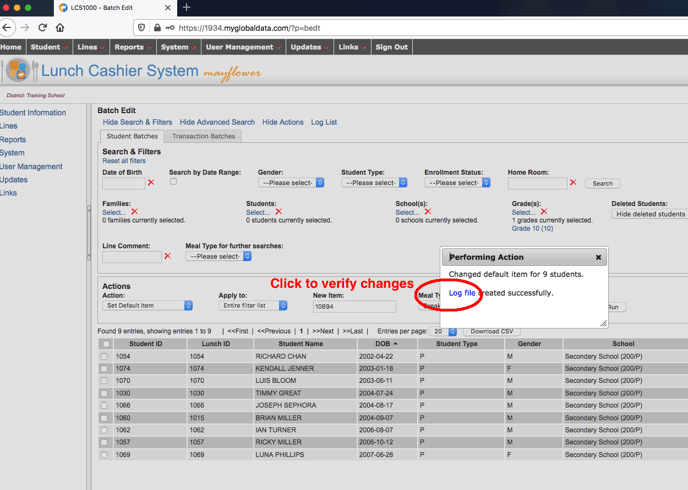
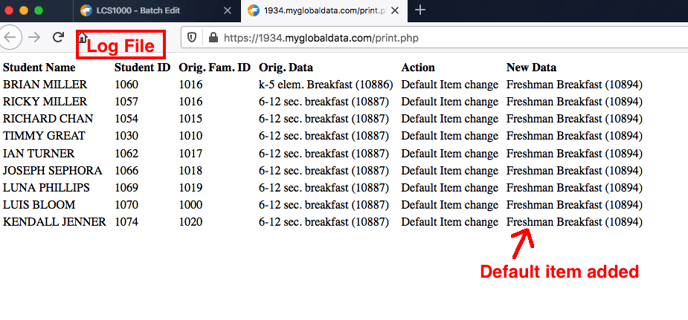
IMPORTANT: In the dialog box, that appears after running the action, click on the Log File link to verify your work
4.Then, click Reset Filters to start over with a new selection of students/grades