![New Project.png]](https://knowledgebase.edutrak.com/hs-fs/hubfs/New%20Project.png?height=40&name=New%20Project.png)
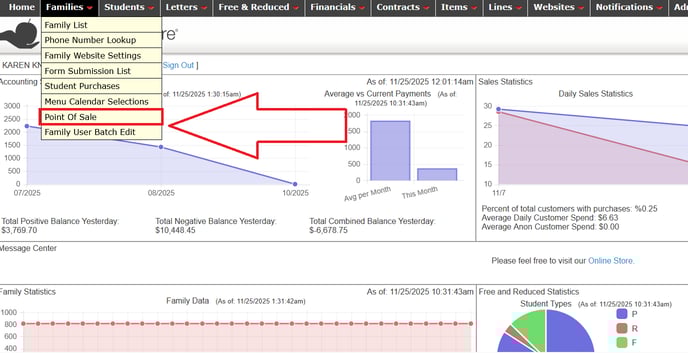
The way you post payments to family accounts is changing. This change will allow you to have a much more comprehensive set of reports. To make a payment, log in to the Admin Site and from the Families tab, select Point of Sale, as seen here:
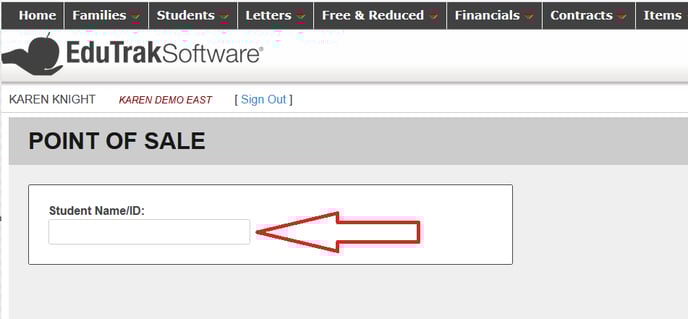
Next, search for one of the students in the family, as seen here. (Note, for food service payments, all students in the family eat out of the same shared family balance.)
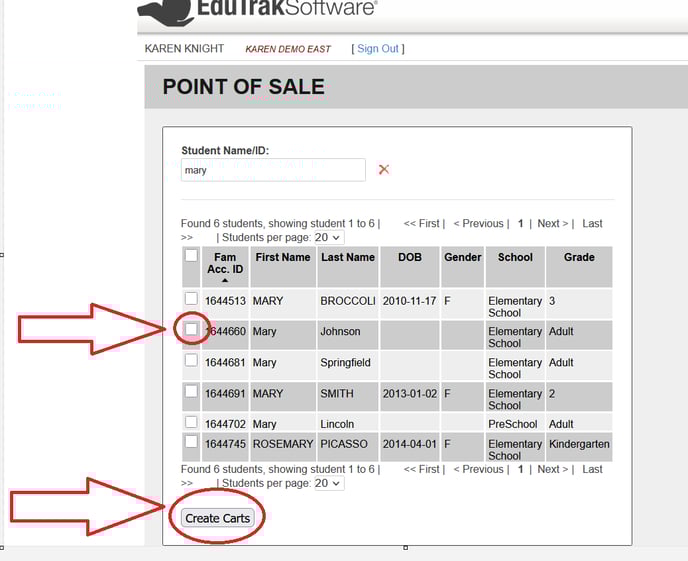
Next, check the box next to one of the students in the family, then click
“Create Carts”, as seen here:
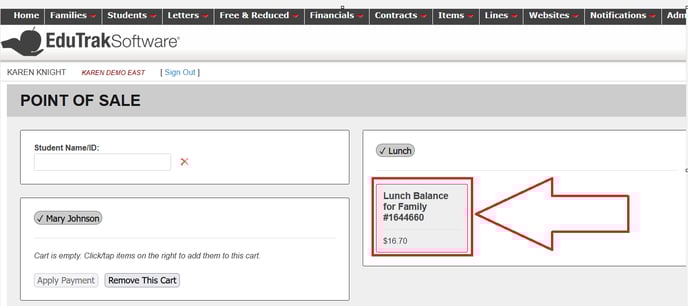
Next, click on the “Lunch Balance for Family” box, as seen here:
Next, enter the amount of the payment, as seen here:
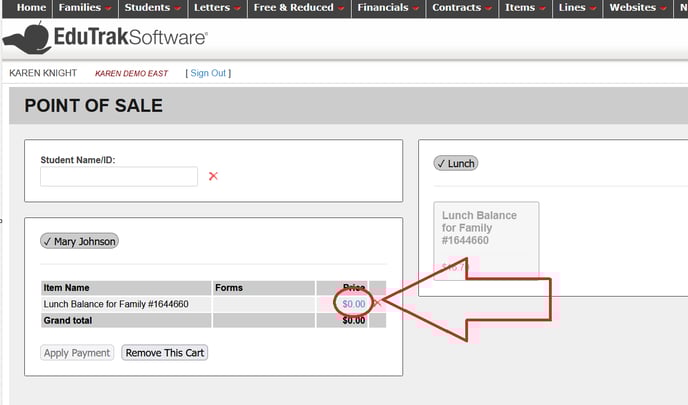
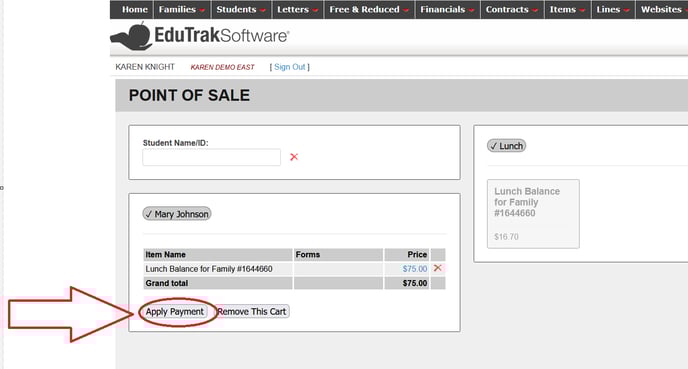
Next, click “Apply Payment”, as seen here:
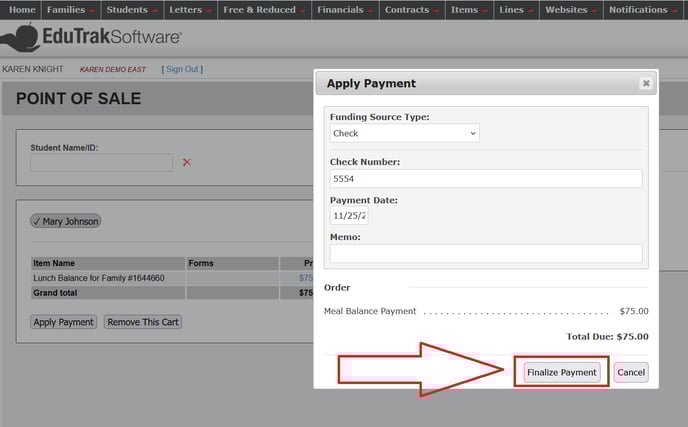
Next, select a Funding Source, as seen here: It is important to note you should NOT select “SRED” or “Card Present” unless you have a SRED (credit card swiper) in the school office.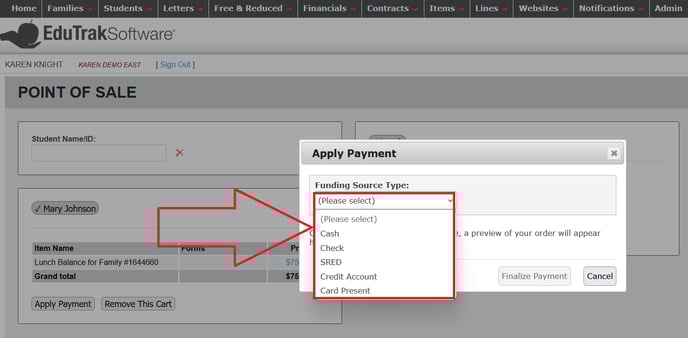
Next, enter a check number (if it is a check) and a memo (optional), as
seen here:
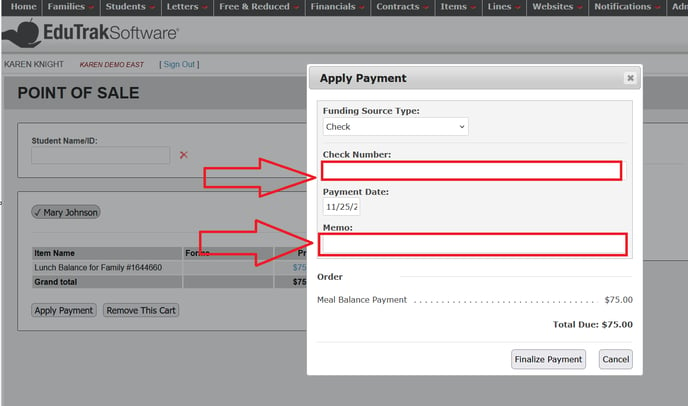
Next, click “Finalize Payment”, as seen here:
For Transfer of funds from one family account to another, or issuing a refund of a family balance, a Credit Account should be created. Instructions to do so are here: How to create a Credit Account
We recommend creating a minimum of two general credit accounts (not tied to any family) to use for Transfers or Refunds. One credit account titled Transfers, and one titled Refunds (or whatever your preference).
To transfer funds from one family account to another, you would click Transfer in the family dashboard payment box, enter the amount to move, and designate the Transfer credit account.
To issue a refund, for example, if a family has a positive balance when they leave the school, you would choose the Transfer option, transfer to the Refunds credit account. From the Refunds credit account, you can issue a refund. Click Deposit or Withdraw:
You will enter a negative amount when you are withdrawing (refunding) funds from the Refunds account.
Click Start Deposit/Withdrawal Process. Choose Funding Source Type (check if you are issuing refund by check, or cash if refunding cash). Example:
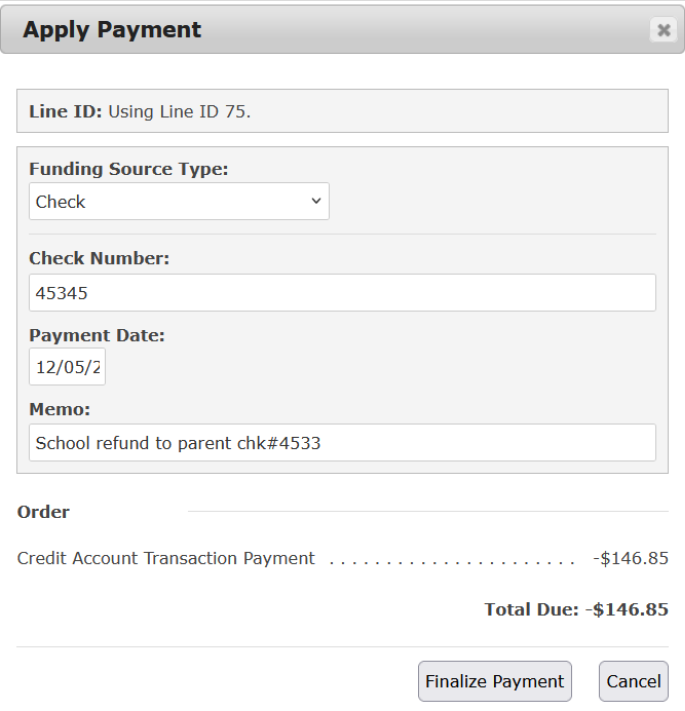
Click "Finalize Payment".