![New Project.png]](https://knowledgebase.edutrak.com/hs-fs/hubfs/New%20Project.png?height=40&name=New%20Project.png)
Part 1: Signing your tuition contract
Step 1 – Navigate to the Tuition module
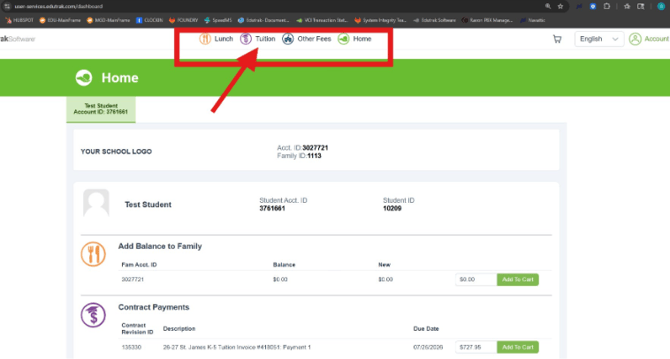
Once logged in, you will land on the Home dashboard. At the top of the page, locate the App Bar — this contains buttons for each module: Lunch, Tuition, Other Fees, and Home. Click the purple cap icon labeled "Tuition" to navigate to the Tuition module.
Step 2 – Find your student & sign the contract
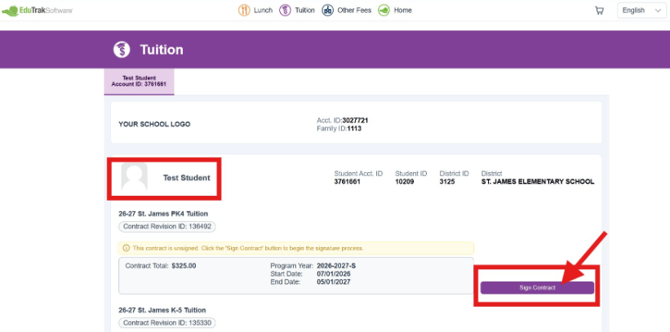
You will now see the Tuition page with your student(s) listed. Here you can view the contracts assigned to each student, including the contract total, program year, and start and end dates.
If your contract has not yet been signed, you will see a notice: "This contract is unsigned. Click the 'Sign Contract' button to begin the signature process." Click the purple "Sign Contract" button to proceed.
Step 3 – Complete & submit the Forms page
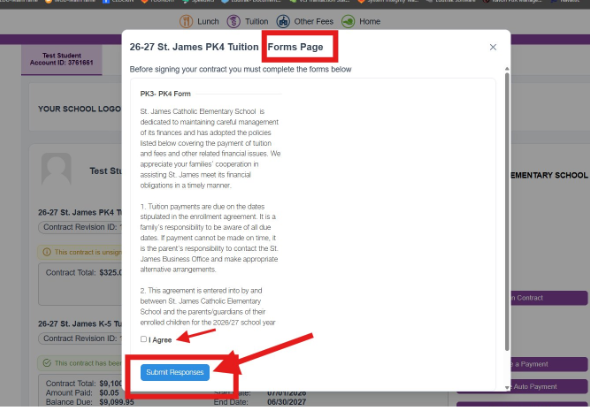
A Forms Page pop-up will appear before you can sign your contract. Read through all the information and policies carefully. You may be asked to answer questions or check an "I Agree" checkbox to acknowledge the terms. Once you have completed all required fields, click the "Submit Responses" button to proceed.
Step 4 – Select your payment plan & set up Auto Pay
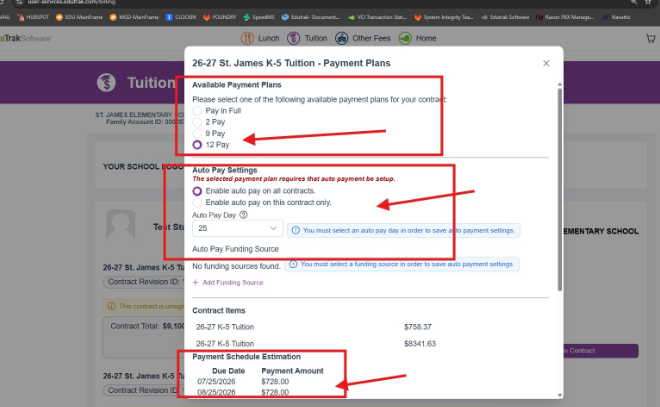
A Payment Plans pop-up will appear. Complete each section:
-
Select a payment plan from the available options (e.g., Pay in Full, 2 Pay, 9 Pay, 12 Pay).
-
Enable Auto Pay — you can choose to enable auto pay on all contracts or this contract only, then select your preferred Auto Pay Day.
-
Add a Funding Source — if no funding source has been added yet, click "+ Add Funding Source" to add your payment method.
Some schools require Auto Payment to be set up before you can finish signing your contract. The Payment Schedule Estimation shown at the bottom is an estimate and may be subject to change
Part 2: Managing payments
Step 5 – Your contract is signed — manage payments
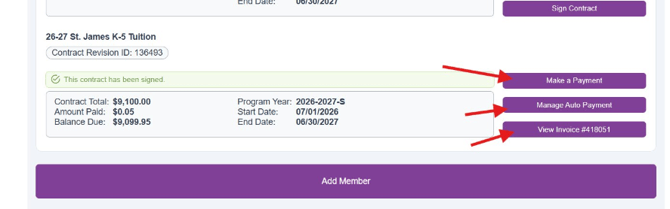
Once your contract has been successfully signed, you will see a green confirmation message: "This contract has been signed." From here you will have three options:
-
Make a Payment — apply a payment directly toward your contract balance.
-
Manage Auto Payment — update or review your auto payment settings.
-
View Invoice — see your invoice details and any payments you have already made.
Step 6 – Apply your payment & complete checkout
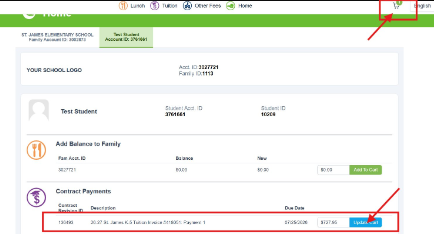
Once a payment has been initiated, it will be added to your cart (visible in the top-right corner of the page). You can add your payment in two ways:
-
From the Tuition module by clicking "Make a Payment" on your signed contract.
-
From the Home page under the Contract Payments section — click "Update Cart" to add your next due payment.
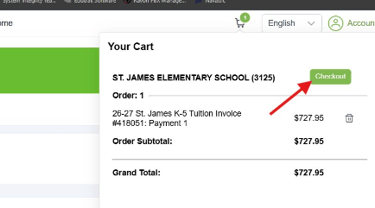
Click the green "Checkout" button in your cart to complete your payment. You will receive an email receipt of your order. You can also review all past orders at any time under the "Account" section.