![New Project.png]](https://knowledgebase.edutrak.com/hs-fs/hubfs/New%20Project.png?height=40&name=New%20Project.png)
Hide Contract Feature
Contract Visibility Control Documentation
Overview
The Hide Contract feature allows schools to assign contracts to students while preventing parents from viewing or acting on them until the school is ready to release them.
- Key Points:
- Hidden contracts are fully assigned and reportable.
- Parents cannot view, sign, or pay on hidden contracts.
- Contracts can be unhidden individually or in bulk.
Method 1: Assign Contract as Hidden (During Assignment)
- Navigate to the Batch Editor.
- Assign the contract to a student or group of students.
- Configure contract details (dates, items, deposit, forms, billing type, payment plans).
- Select the checkbox labeled 'Assign contract as hidden'.
- Click 'Assign Contract'.
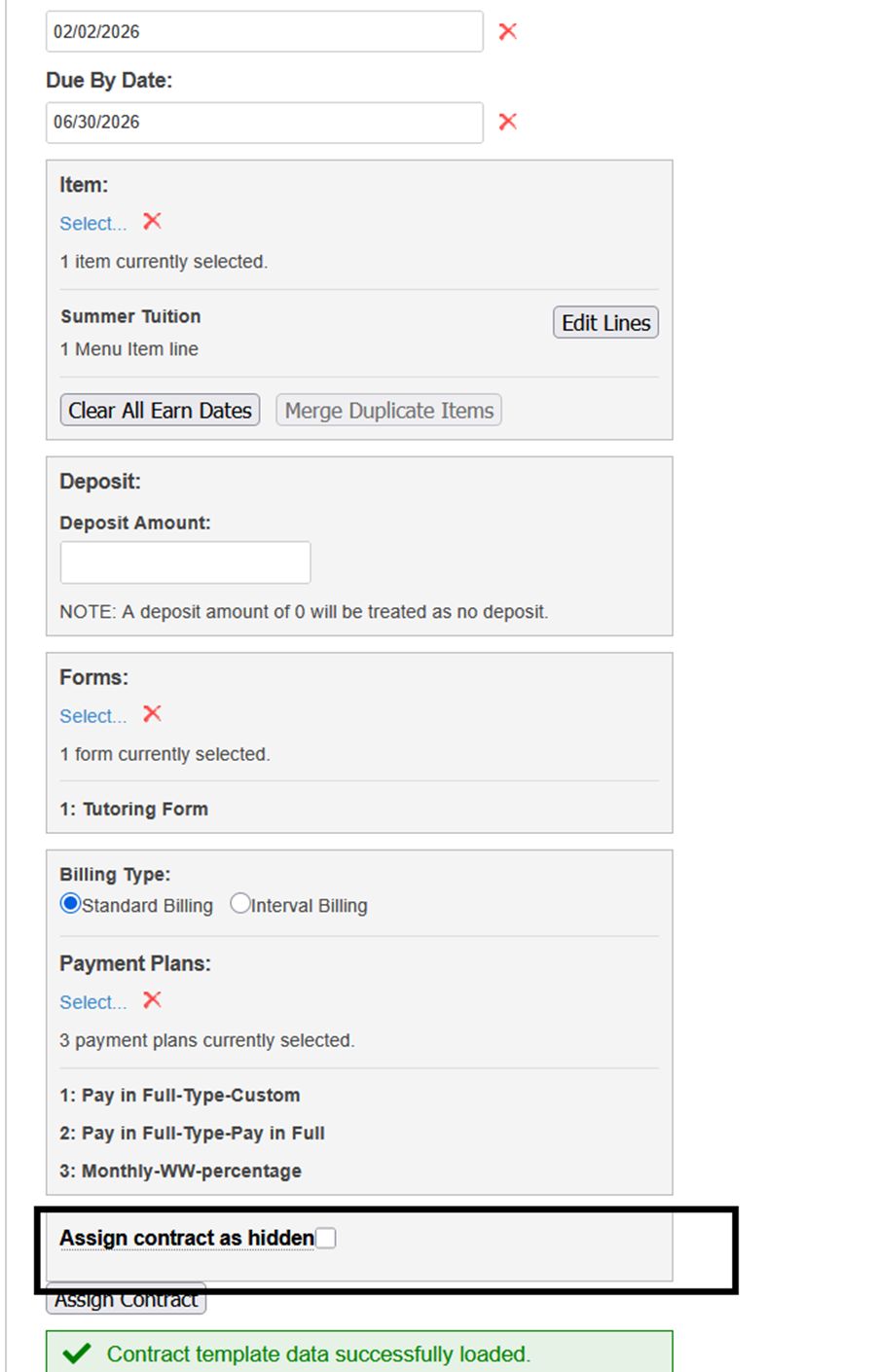
Figure 1: Assign contract as hidden checkbox.
Method 2: View Hidden Contracts (Contracts Tab)
- Go to the Contracts tab.
- In Search & Filters, locate 'Search by Hidden Status'.
- Select 'Show Hidden' to display hidden contracts.
- You may also select 'Show Unhidden' or 'Show All' as needed.
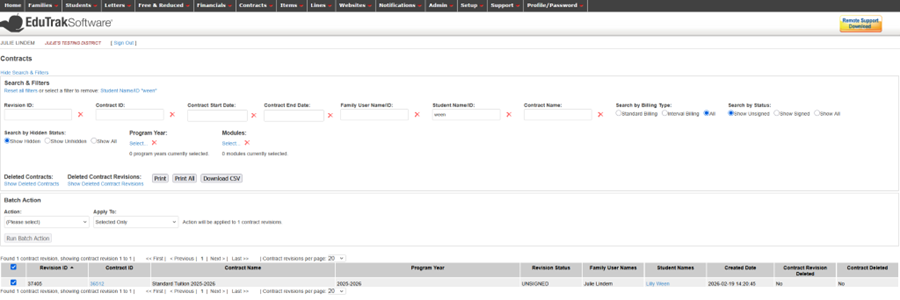
Figure 2: Contracts page showing Hidden Status filter.
Method 3: Batch Hide/Unhide Contracts
- Select the contract revisions you wish to update.
- Scroll to the Batch Action section.
- In the Action dropdown, select 'Mark Contract Hidden/Unhidden'.
- Set Apply To to 'Selected Only' (recommended).
- Click 'Run Batch Action'.
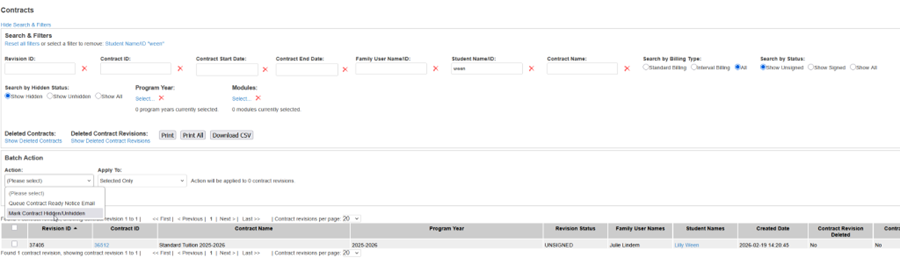
Figure 3: Batch Action dropdown showing Mark Contract Hidden/Unhidden.
Method 4: Hide or Unhide from Contract Details Page
- Open the contract from the Contracts tab by clicking the Revision ID.
- Locate the visibility status indicator on the contract details page.
- Select the option to mark the contract as Hidden or Unhidden.
- Save changes. The update takes effect immediately.