![New Project.png]](https://knowledgebase.edutrak.com/hs-fs/hubfs/New%20Project.png?height=40&name=New%20Project.png)
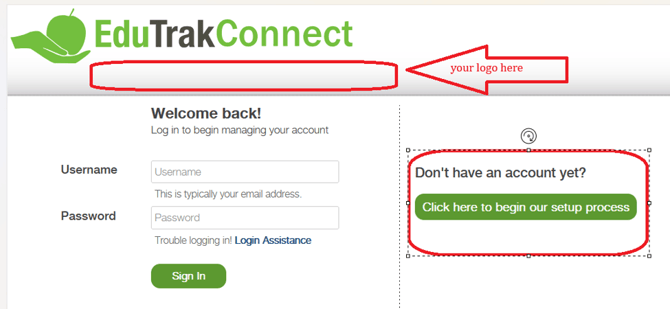
1. Your parent should arrive at this login page when they are first creating their account, whether it's for lunch, activities, or the online school store.
The login homepage will have your school district's logo at the top if you are using a branded lobby link. For this article, I will be using the generic lobby page.
From here they will click on “click here to begin our setup process”
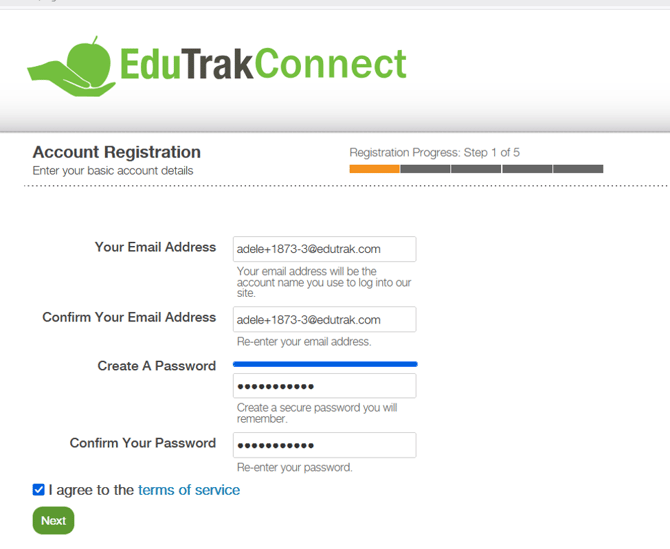
2. There are 5 registration steps and it will mark their progress in the order they are filling out the required information.
Step 1: is email info, note that their email address will also be their account login username.You will also need to set your password in this step and agree to our terms of service.
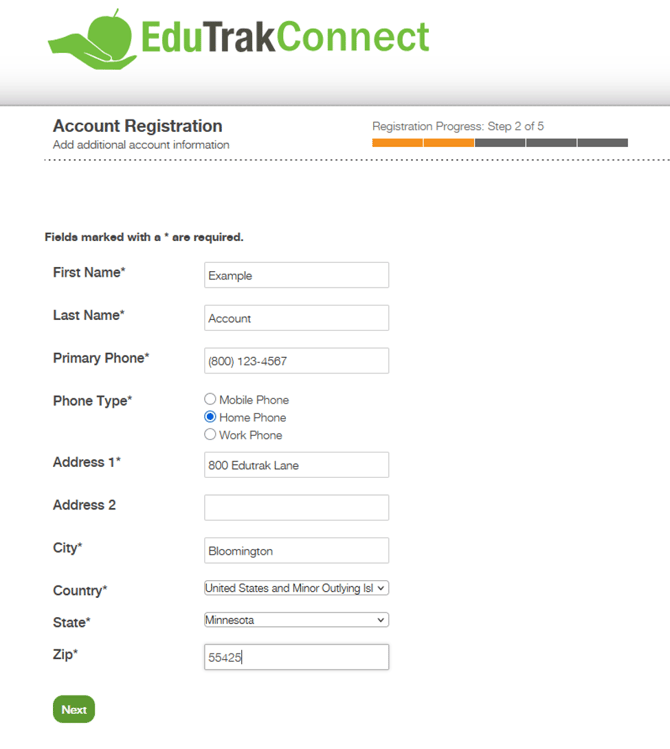
3. Step 2 is entering contact info
4. Step 3 is confirming their email address, once the parent has reached step 3 they should receive an email with a confirmation code they will enter here.
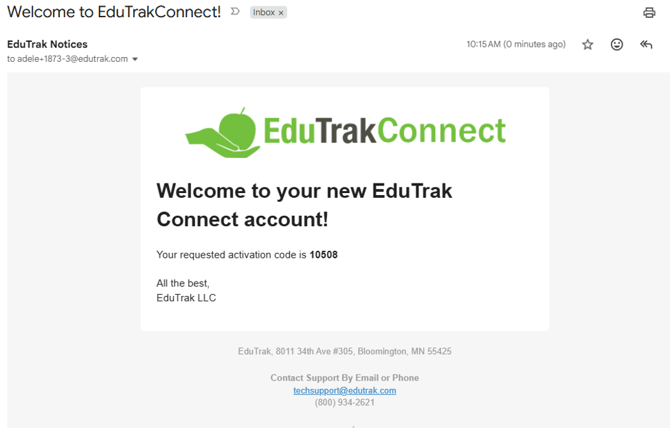
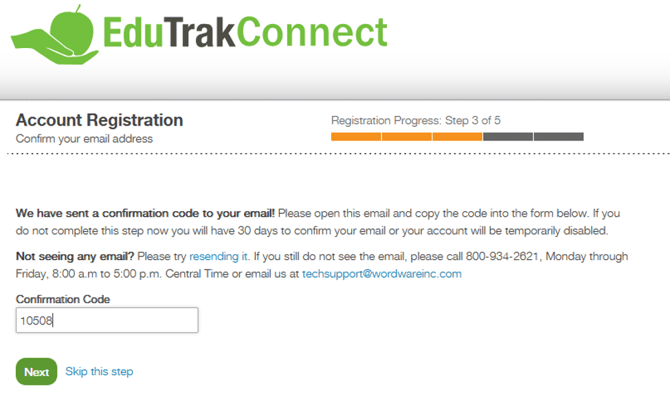
5. Step 4 is connecting their parent user account to their family account in your Wordware school system. Connecting their parent user to the family account will give the parent access to manage their student(s) account.
Here they will have 3 options to connect, either with a family key, with a student ID and DOB if you are using a branded lobby link, or to skip this step if they are making donations, purchasing merchandise or tickets to an event. You would also use this option if they are paying a registration fee for a future student.
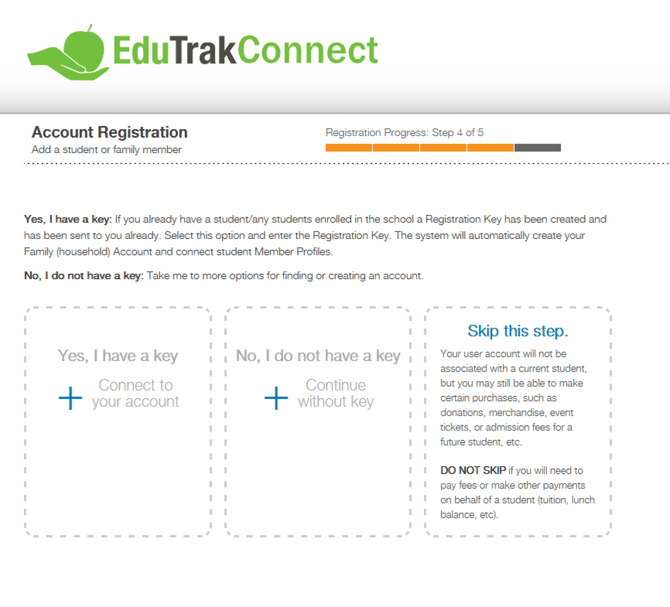
If you choose "no, I do not have a key, you must be using a branded lobby link. The student ID and date of birth will not work on the generic lobby site.
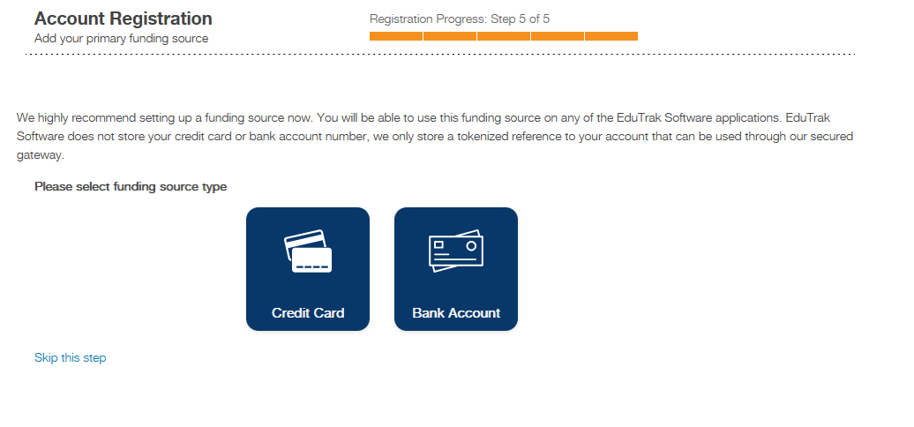
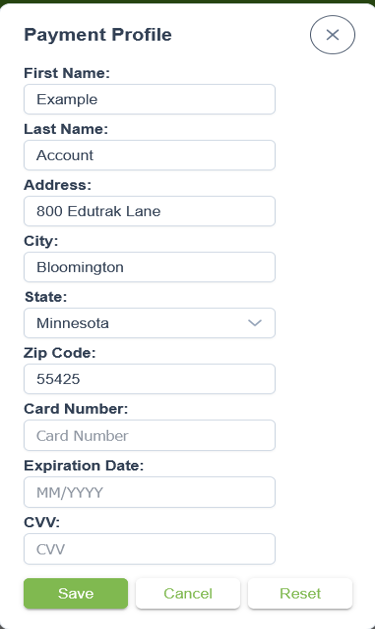
6. Step 5 is adding a payment method on their account for online payments. Parents have the option to skip this step too. But a payment method will need to be entered to actually make a purchase.
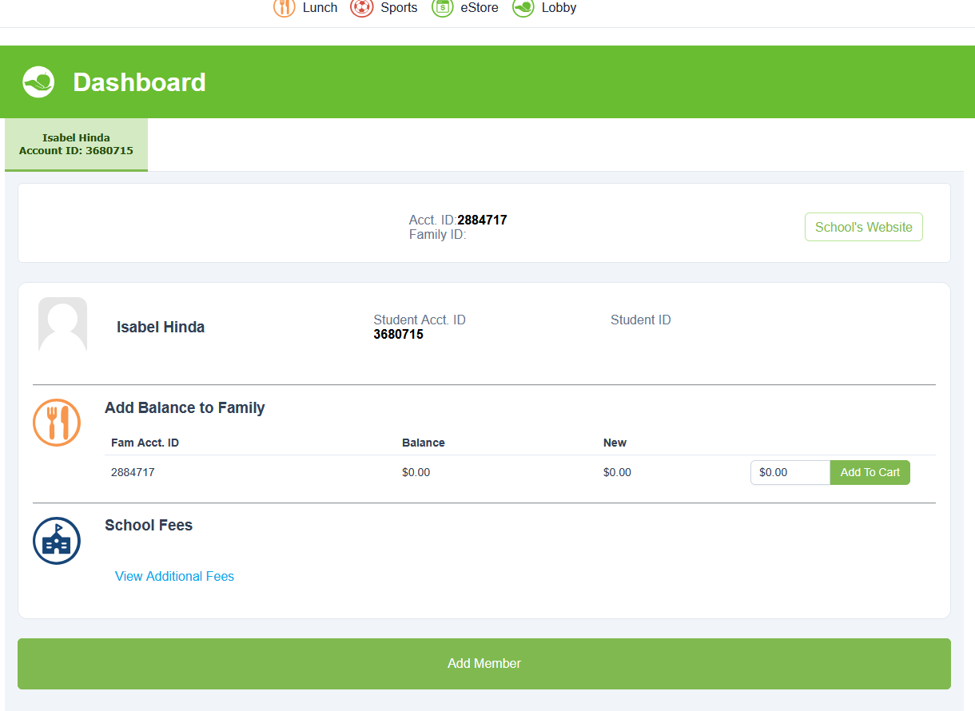
6. Once they are done, it should redirect them to where they started the process from whether that was from the lunch, activities, or store app. The parent can navigate from one app to another by clicking on the app icons.