![New Project.png]](https://knowledgebase.edutrak.com/hs-fs/hubfs/New%20Project.png?height=40&name=New%20Project.png)
Log into your Admin Site
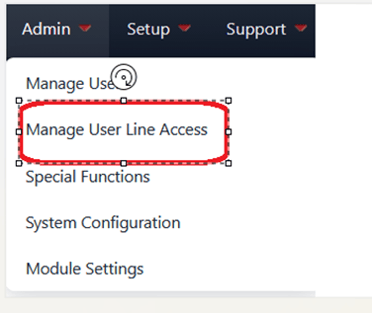
You will need a line number to make these transfers. Go to the Admin tab and click on Manage User Line Access. This is not a meal serving line, this is a line used only by the administrators to transfer balances.
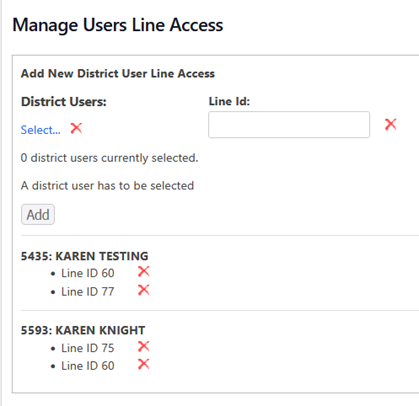
Make sure the user has a Line Access. If not, Select the user and assign a line ID to them. Then click the Add button. The line numbers used by administrators should not be one of the line numbers used for your serving lines.
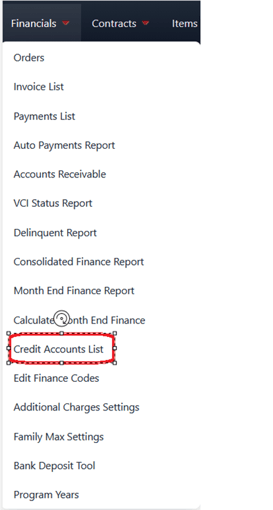
Once the user has an assigned line, you want to check that you have a credit account set up to use for transfers. On the Financials tab, go to Credit Account List.
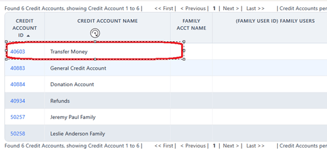
These two steps, assigning a line to a user and setting up the transfer credit account only need to be completed once.
Pull up the family dashboard for the family that has the balance from the Family List. Click on the link to Transfer Balance in the Payments box on the lower right side of your screen.
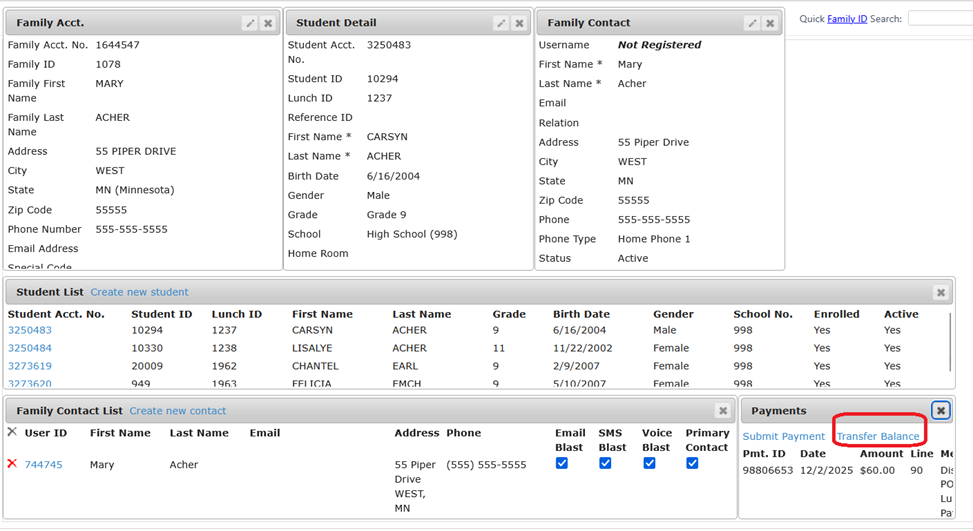
This will bring up a pop-up window.
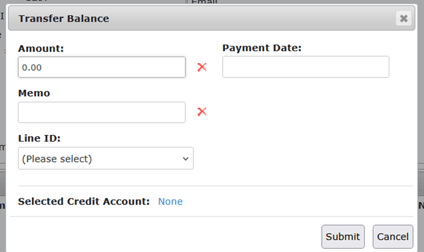
Enter the amount to be transferred, usually the full balance, the date of the transfer, a short Memo about why the balance is being transferred and the Line ID will automatically populate with the line number that was assigned
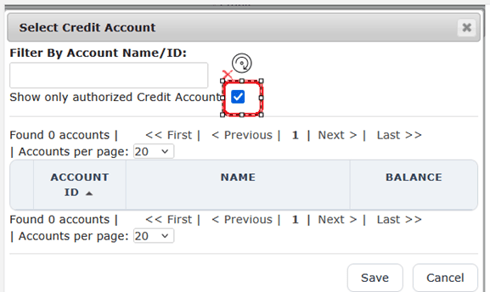
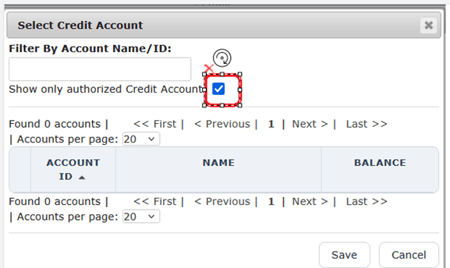
When you get to the Selected Credit Account, click off the checked box next to Show only authorized Credit Accounts
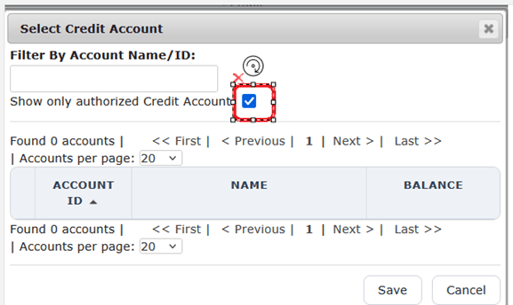
Then select the Credit Account you have set up for the balance transfers and click Save at the bottom of the pop-up.

When you have everything filled in on the Transfer Balance window, click Submit, in the lower right corner of that box.
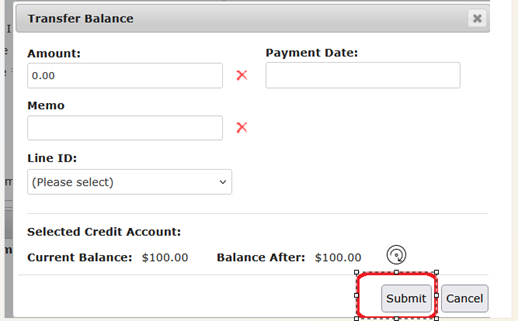
This will submit a negative payment to the family meal account.
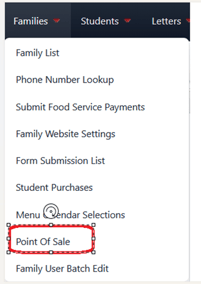
Now go to the Families tab, and click on Point of Sale.
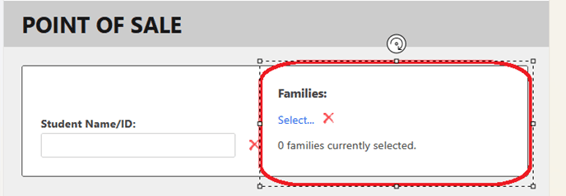
Search by Families, select the family by checking the box by the name, then click save.
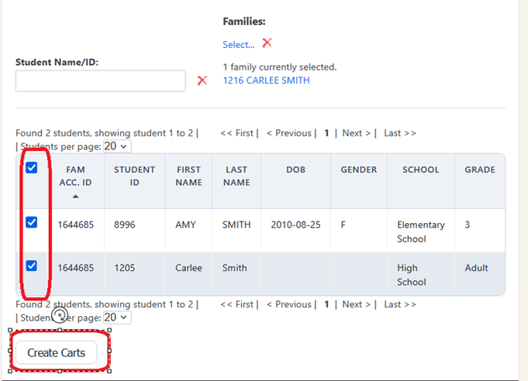
Next you will get a list of the students in that family, click the boxes in front of all the students names. The click Create Carts at the bottom of the box.
Then, on the Carts window, click on Lunch and select the Lunch Balance for Family #XXXXX
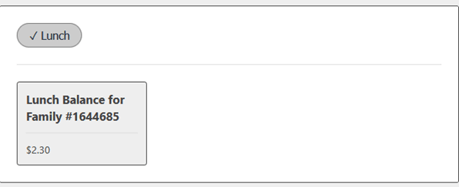
Now enter the amount that this family will be receiving from the balance transfer on the Lunch Balance for Family #XXXXX, then press the Tab key.
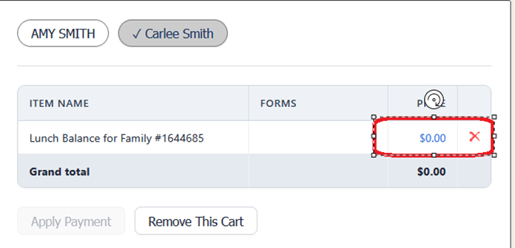
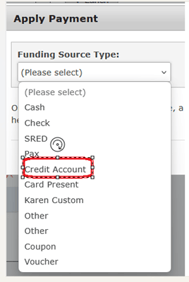
This will enable the Apply Payment button, click on it. Then select Credit Account from the drop down under Funding Source Types.
Then click on the Selected Credit Account: None:
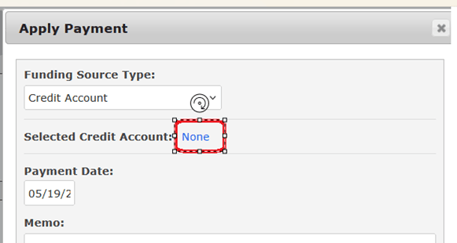
Uncheck the box after Show only authorized Credit Accounts, and select the Transfers Credit Account.
Enter a brief memo as a reminder why this transfer was made, and click Finalize Payment. This puts the money from the Credit Account into the correct Family Meal Balance.