![New Project.png]](https://knowledgebase.edutrak.com/hs-fs/hubfs/New%20Project.png?height=40&name=New%20Project.png)
Roster Select Setup & Use
- Common Use Cases:
Roster Select is designed for schools or programs where students may not pass through a traditional cafeteria serving line. Instead of entering a student ID, scanning a barcode, or using biometrics, staff can charge meals by selecting students from a visual roster that displays names and photos. This feature is ideal for environments where meals are delivered directly to classrooms or remote locations.
While Roster Select is most often used in classrooms or off-site scenarios, it can also be used within a traditional cafeteria serving line if students are processed by grade, homeroom, or other groupings rather than individually
- Preschool, Daycare, or ECFE programs where children are too young to operate a POS station.
- Alternative or off-site school programs where meals are prepared centrally and delivered.
- Special education classrooms that receive meals in-room.
- Schools using classroom delivery models instead of cafeteria-based service.
- Traditional cafeterias processing meals by grade, homeroom, or group.
Step 1: Create and Configure a Roster Select Line
- Create the Line in Line Definitions
- Navigate to the Lines tab
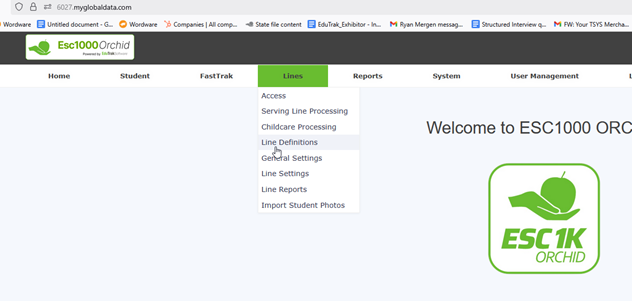
- Click Line Definitions.
- Click Add New Line.
- Enter the Line Name, select the appropriate School and Grades, and assign a unique Line Number.
- For reimbursable meals, make sure to choose the correct meal type:
- Standard Meal Types: Breakfast or Lunch:
- Place the Roster Line under the appropriate title.
- If outside standard meal types and you need your items are reimbursable: select Create New Meal Type and assign a Free & Reduced (F&R) program.
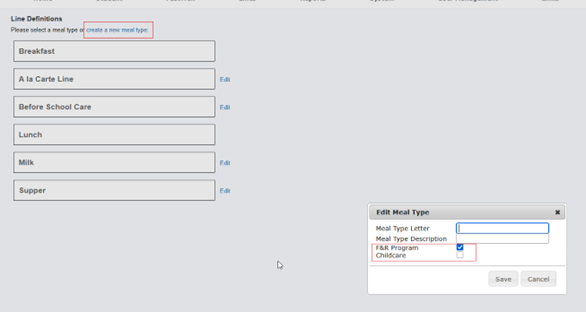
- Click Save.
- Select the new line from the Lines tab.
- Click Edit in Line Settings.
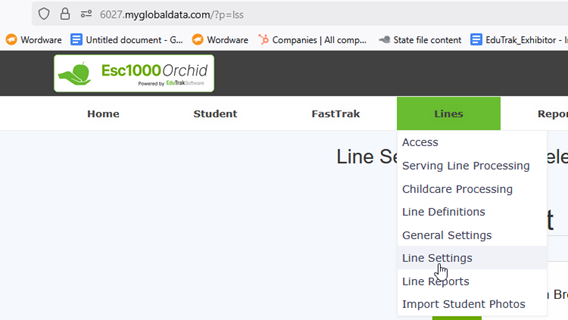
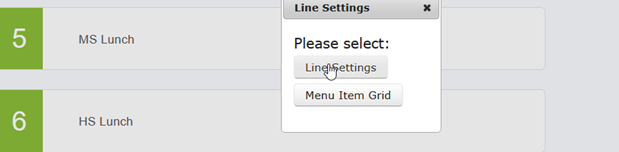
- Set Line Software Version to 4.
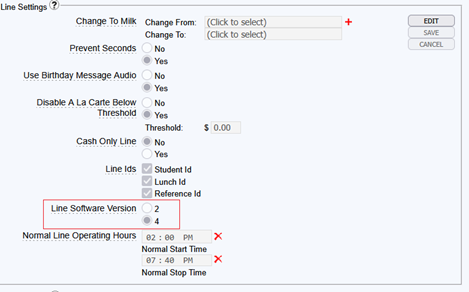
- Configure additional settings as needed: Prevent Seconds, Cash Only, A La Carte, Line IDs, and Operating Hours.
- Click Save.
Add Menu Items
- Next Click on the Menu Item Grid
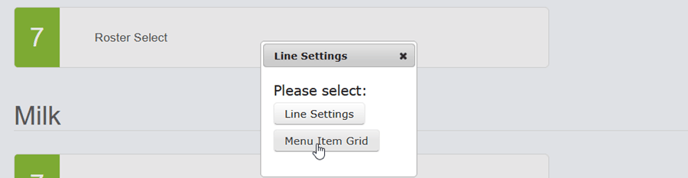
- Drag and drop the menu items in the grid and click save
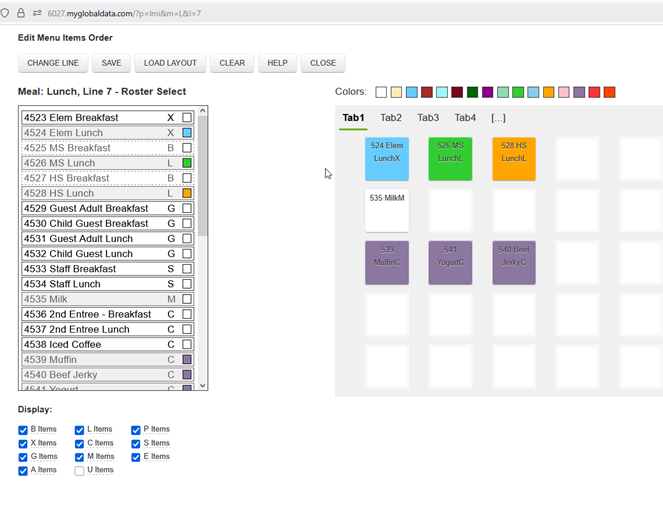
Note: Line access will follow configured start/stop times. If not using time restrictions, disregard this note
Assign Users to the Roster Select Line
- Go to User Management > Line Access.
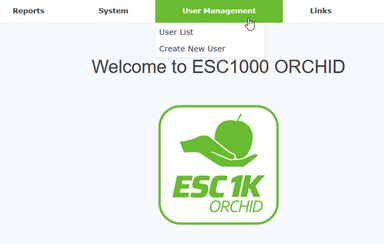
- If limiting access, assign appropriate users to the line or select all lines.
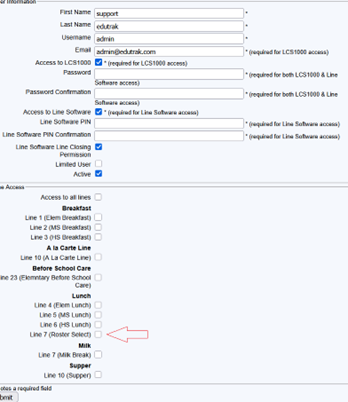
- Save changes.
Step 3: Load Student Photos
- Navigate to Lines > Import Student Photos.
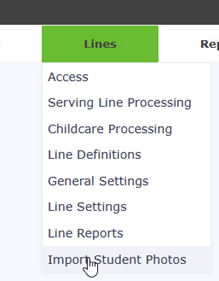
- Follow file naming and upload instructions.
Note: Without photos, only student names will display.
Step 4: Access and Use the Roster Select Line
A. Log In and Select the Line
- Staff logs in and selects the Roster Select line.
- If the line is not open yet, a time restriction message will appear (if enabled).

- Click Options.
- Choose filter: Homeroom, Grade, or School.
- Search by grade, school number or homeroom.
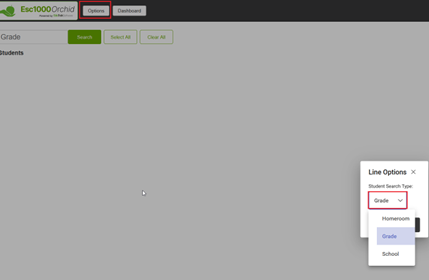
- Click on students to select; selected students will highlight in green.
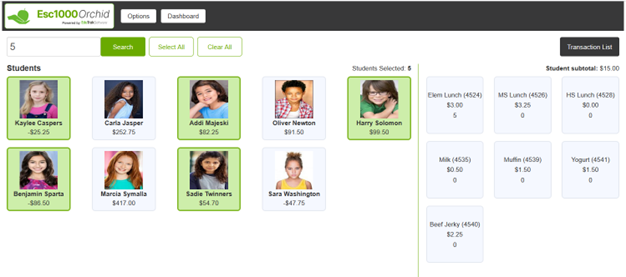
- Use 'Select All' or 'Clear All' as needed.
Note: 'Clear All' only clears visually—it does NOT delete transactions.
- Choose items (e.g., Elem Lunch, Milk, Yogurt) on the right.
- Once the item is selected it will appear in the transaction list for everyone you have marked in green.
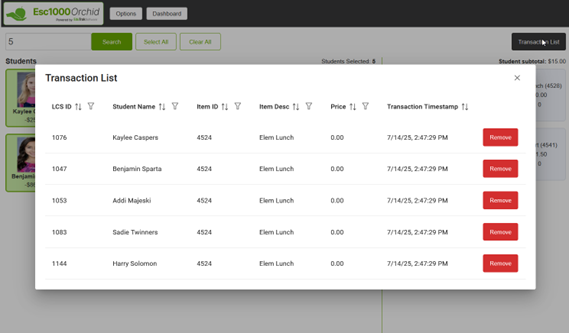
- Click Transaction List.
- View or remove entries manually.
- Close the window to return.
Step 5: End of Day Processing
At the end of the meal period, close and process the line in the same way as your standard serving lines