![New Project.png]](https://knowledgebase.edutrak.com/hs-fs/hubfs/New%20Project.png?height=40&name=New%20Project.png)
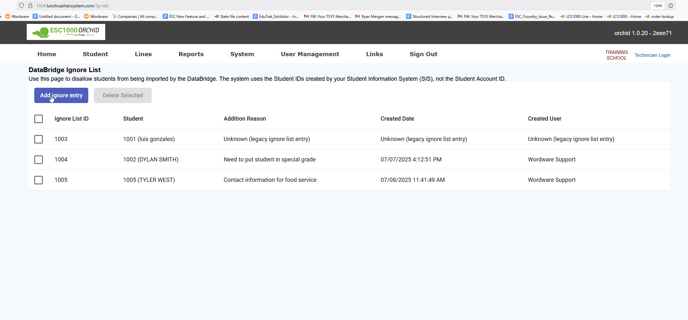
The Data Bridge Ignore List now provides more detailed information for each student entry. Previously, only the Student ID number was displayed. Now, you can see the reason the student was added, who added them, when the entry was created, and the student's name.
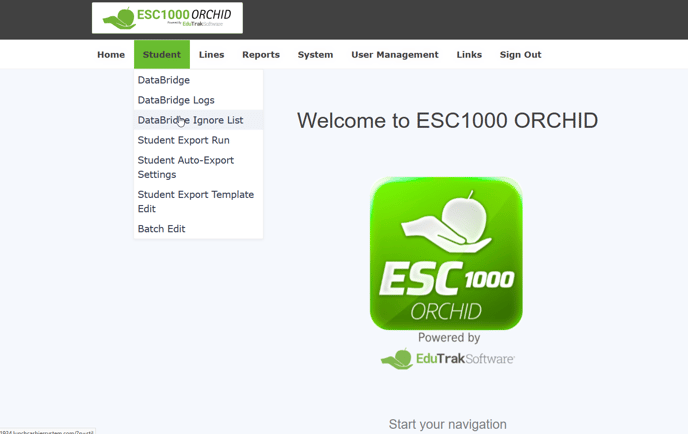
Step 1: Go to the Student tab and select DataBridge Ignore List
Step 2: View the list of ignored students.
You will now see the following details for each entry:
• Ignore List ID
• Student (ID and name)
• Addition Reason
• Created Date
• Created User
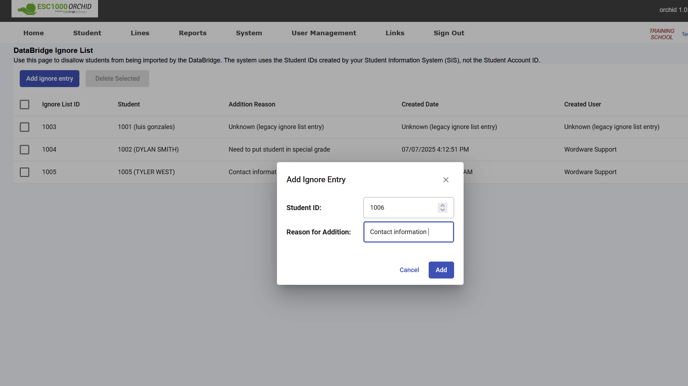
Step 3: Add a new ignore entry if needed.
Click on Add Ignore Entry, enter the Student ID, and provide a reason for the addition. Then click Add to save
Step 4: Confirm the new entry.
The newly added student will appear in the list with the entered details, along with the created date and user.