![New Project.png]](https://knowledgebase.edutrak.com/hs-fs/hubfs/New%20Project.png?height=40&name=New%20Project.png)
Note: For schools using the Programs/Subgroups (Enrollment) feature with Auto-Enroll enabled, assigning an enrollment will automatically trigger a contract assignment — this is an alternative way to assign contracts.
Step 1 — Log In to the EduTrak Admin Site
Step 2 — Navigate to Students > Batch Edit From the main navigation, go to Students > Batch Edit.
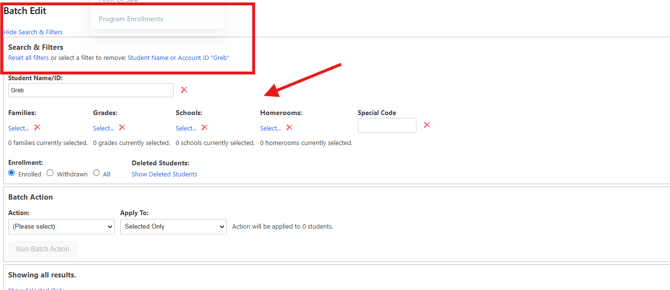
Step 3 — Search for Your Student(s) Use the Search & Filters to find the student or group of students you want to assign an enrollment to, then hit Enter to load your search results.
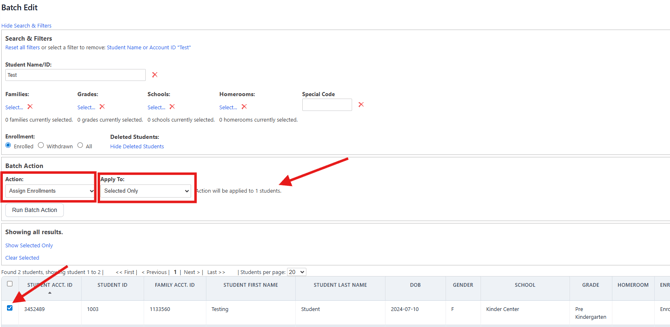
Step 4 — Configure Your Batch Action Under the Batch Action dropdown, select Assign Enrollment. Under the Apply To dropdown, select either Selected Only (if using checkboxes) or Entire Filter List — pay attention to how many students the action will be applied to.
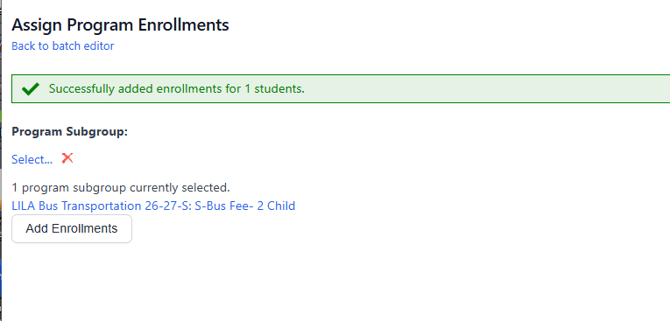
Step 5 — Run the Batch Action Click Run Batch Action — this will take you to the Program Subgroup page where you can select the Program Subgroup (contract template) you want to assign to your student(s). Click on the blue text 'select' to open the list of subgroups and once selected click save.
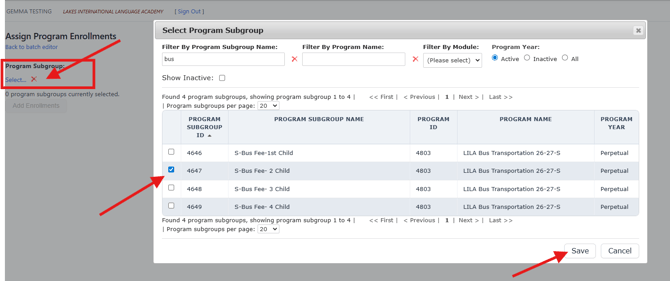
Step 6 — Add the Enrollment Once selected, click Add Enrollment — a green confirmation banner will briefly appear at the top of the page.
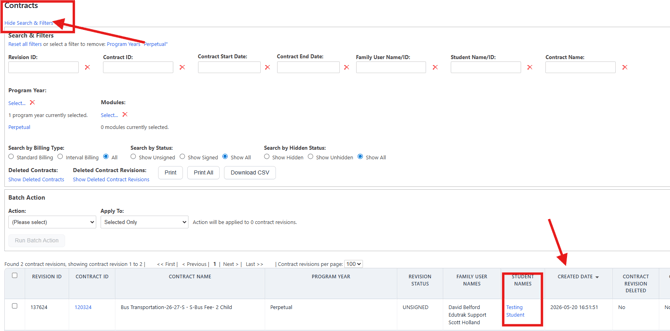
Step 7 — Verify the Contract Assignment If the Program Subgroup was set to Auto-Enroll, a contract should automatically be assigned to the student. You can review this under the Contract List.